
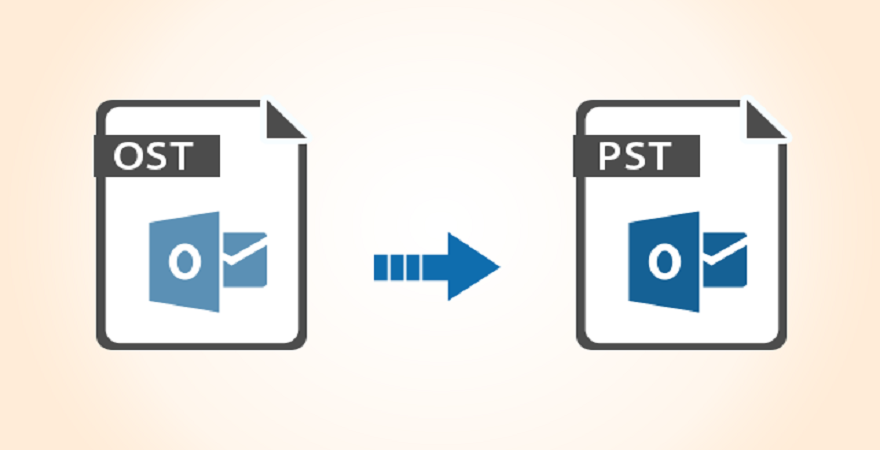
If you are an Outlook user you will already be aware of its features. This is a widely used email client all over the world. It stores the overall database in OST or PST format as per the user’s Outlook configuration. However, there are various reasons or situations that users need to export OST files data into Outlook PST format.
Reasons to Export OST Files into Outlook PST Format?
- If the OST file cannot be accessed in Outlook, then the OST file needs to be converted to PST format in order to get the OST data in Outlook.
- Distortion of the view or failure of the hard drive.
- Error synchronizing OST files with the Exchange server.
- Virus/malware attacks on the system can also prevent the user from accessing their data.
What is the solution to convert OST to PST format?
Well, if you are stuck in any of the situations where you have the prospect of converting OST files into Outlook PST format. In order to fix the problems encountered while using the OST file, there are several methods you can try. It will help you manage the OST file problems and fix the original OST file which the user can easily access in Outlook. However, be careful when taking manual steps as it may corrupt or corrupt the OST file. Before taking any action, make a backup of the original OST and then take an action. It is recommended to use the scanpst.exe which is the built-in function of the Outlook application to repair the OST in one manual step.
How to Convert OST to PST File Format?
Using 2 different techniques users can export OST files into PST format. Read both techniques and successfully convert OST to PST file format
1: Convert OST to PST by Using the Manual Method:
There are different ways to convert OST files into Outkook PST-free. Let’s discuss them one by one.
A: Convert OST to PST by Using Import/Export:
- Open MS Outlook.
- Go to File > Click on Open & Export and then select Import & Export.
- Click on Export to a file > Select Next.
- Select Outlook Data File (.pst) > Next.
- Select the mailbox that you want to export> Next.
- Browse the location of exported PST file and click on Finish.
B: Export OST to PST by Using Archive Method:
- Launch Microsoft Outlook Application.
- Go to File > Click on Tools > then select Archive.
- Select the required file/ folder to archive.
- Browse the location for the archive file > Click on Finish.
Limitation of Manual Method:
Manual Methods come with some drawbacks. Before using the manual method for converting OST to PST read the limitations that are mentioned below:
- The Manual Methods are time-consuming, it requires a lot of effort.
- By using manual methods users cannot repair the corrupted OST file.
- In the manual method there is the size limitation.
- Chances of data loss.
2: Best Software to Convert OST to PST File Format:
Download a multi-featured solution MailsDaddy OST to PST Converter to export OST files to Outlook PST format in a few moments. It can easily convert OST to PST along with embedded data items to PST format. The program easily recovers complete damaged & inaccessible OST file databases and migrates them into PST format.
Unique Features of the OST-PST Converter
- It makes it easy to export OST files to PST, EML, MBOX, MSG, RTF, Office 365, Live Exchange Server, and others.
- Provides full conversion of OST files to PST format along with full data items.
- It also allows the user to batch convert OST files to PST format in a single process.
- Supports all Outlook versions, i.e. Outlook 2019, 2016, 2013, 2010, 2007, etc.
- Helps to access & read the complete OST file databases in the preview port.
- Allows to filter and migrate some specific emails to Microsoft PST format.
- Allows to quickly combine multiple OST files into a single Outlook PST file.
- Retains all email formatting and other text formatting.
- All emails remain in the same folders and sub-folders.
How This Solution Export OST to PST File Format?
- Download and Install MailsDaddy OST to PST Converter. If you don’t have a valid license for using this tool then click on Get demo.
- Click on Add File and add the OST file.
- In the new window click on Add file and select the OST file and also users can select multiple files.
- In the next new window users can see the structure of the folder (optional) and the preview of emails (optional).
- Select the Export option from the top menu bar.
- Now the new export window appears on the screen select PST (Outlook data files) > Users can set the naming convention (Optional) > Select the location where you want to save the log report > Add the destination of exported PST file.
- Users can choose any Create separate PST file and Create Single PST file of every folder option as per their requirement.
- Now click on Export and wait until the process is complete.
- Click on Ok when the OST to PST Conversion process is over.
Final Wording:
Try the free demo version of this OST file recovery utility and check out the full effectiveness of the utility. In the free demo version, users can export the first 20 email items from each folder at zero cost.